
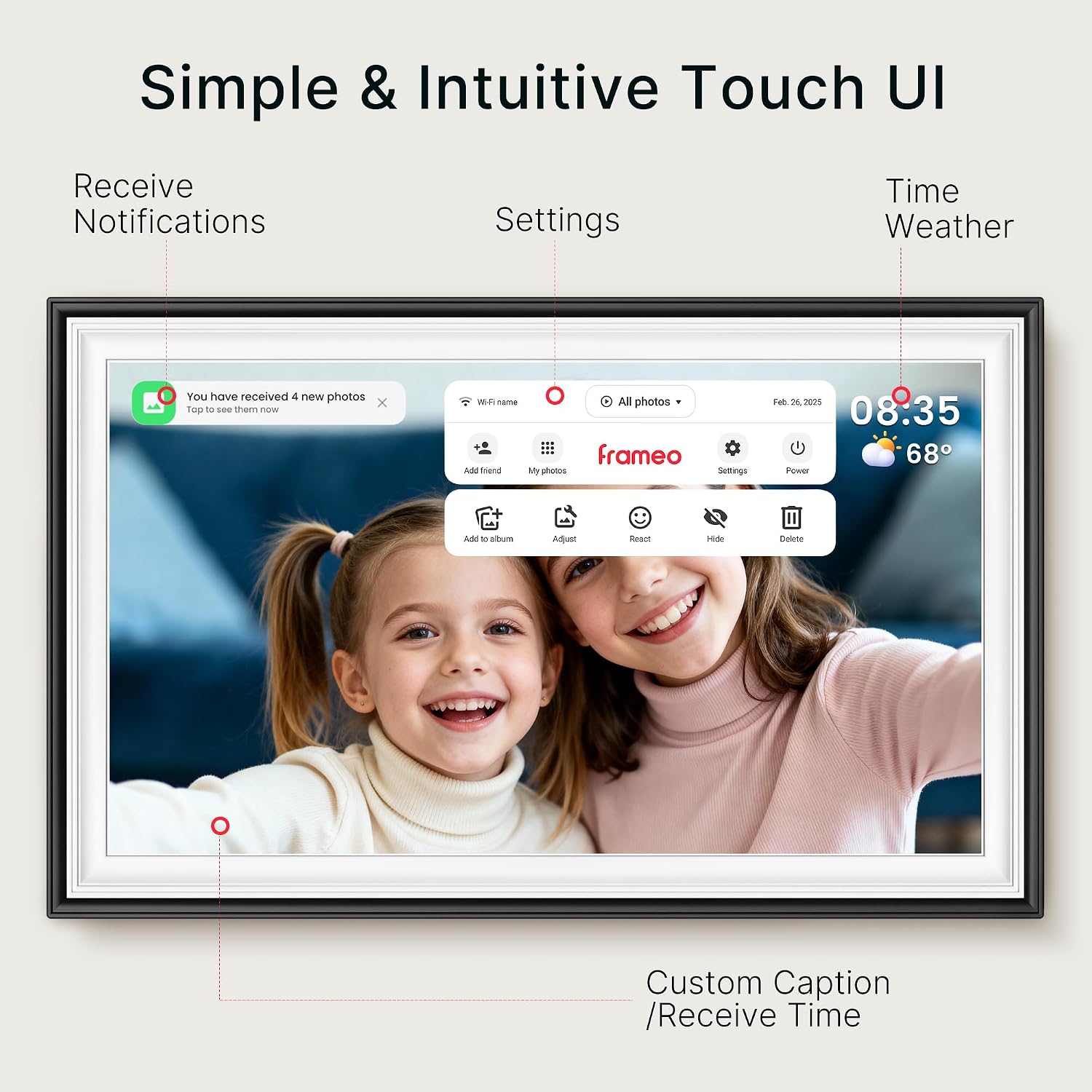
After my last post about turning old iPads into photo frames, I had a different itch to scratch. I wanted a cheap wall-mounted screen that shows a live Home Assistant dashboard rather than photos. I bought a Bigasuo 15.6” digital photo frame which seemed to have a good size, good resolution and touch screen for about £104 - one of the generic “Frameo” white-label frames readily available online - and figured I could repurpose it rather than buy a proper smart display.
How hard could it be? I did see some evidence of people having success with similar frames in Reddit - but also several who said they’d returned a frame because they couldn’t get into it.
Turns out: quite hard. But also a genuinely interesting rabbit hole.
Caveat: I heavily leant on Claude Code to help me do this. I did not have (m)any of the necessary skills to do this alone and it would have taken me a lot longer if I did. I started in a Claude chat and quickly moved to Claude Code as it could navigate the USB commands and build everything for me, pretty much. We just had to coordinate the many times I booted it with different configurations, with or without holding down pins on the PCB and later with and without the bootable SD card. So if you want to do this I suggest you point Claude Code at this article and ask it to do the same for you.
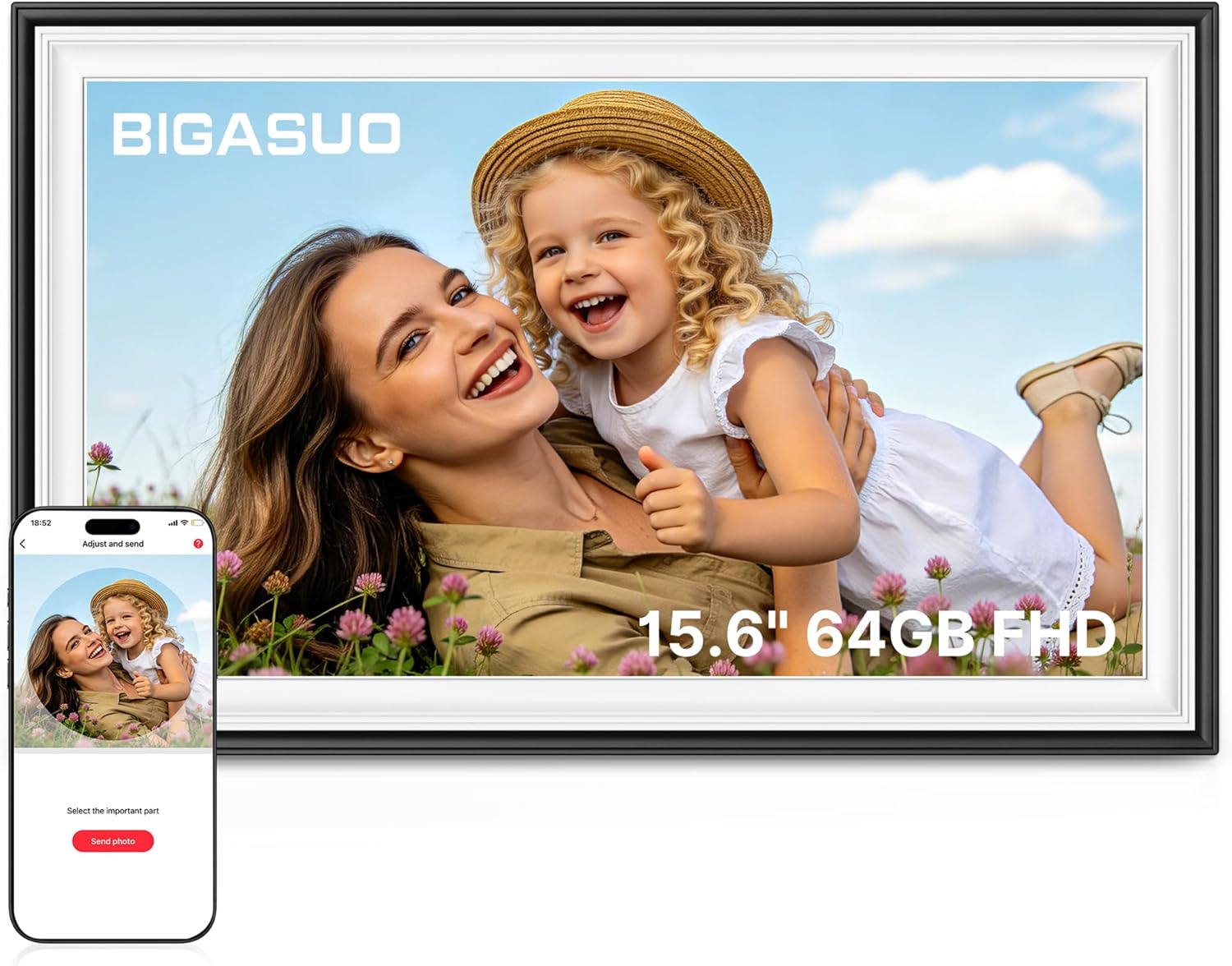
The target
The frame runs Android 8.1 on a Rockchip RK3326 (rockchip,rk3326-863-lp3-v10), with 64GB of eMMC storage. It’s a reference/EVB-style build - SELinux is in permissive mode and there’s no dm-verity, which was encouraging. The plan was simple in theory: get a shell, install Fully Kiosk Browser, point it at my dashboard, done.
In practice it took a very long road to get there.
First hope: ADB (Android Debugging) via USB
Frameo claims that if you turn on the Beta Program in settings and then turn on the newly visible ADB option that a USB C cable plugged into the Frame and then a computer should be able to connect over ADB (Android developer tools) to be able to sideload packages. In theory this can also work over the network too.
But the setting says “cabled connection”. And the docs say “Windows PC and Linux only”. I tried them all. Mac, Windows, Linux. All different cables - USB C -> C, C -> A, C -> A + adaptor to C. With and without a hub in the way. Couldn’t get any ADB device listed or connected. Nothing. I think it was disabled in this particular firmware.
Opening her up
I figured we’d have to go deeper and so I decided to try and get the back off - breaking the warranty and committing to making this work!
After a bit of prising the outer bezel came off, revealing a white inner bezel held in place with screws. Once those were off the screen can be folded off (carefully, leaving the ribbon cables connected) and the PCB can be inspected.
On the PCB is a pair of concentric rectangles where a “button” should be installed and two solder pads for them. This is the “Update” button apparently mapped to the “Volume Up” button on an android tablet and along with the Power button, the only physical way of controlling the device.
First attempts: rkdeveloptool and a hard 32MB wall
Rockchip devices like this can be put into a USB “Loader” or “Maskrom” mode and talked to (from a Mac) with rkdeveloptool, the open source flashing tool.
When I powered the frame up with a USB C -> C cable to the Mac directly (not through a hub) AND held down some tweezers across the update button pads (carefully balancing the screen and the cables) while it booted, I was impressed to see we got “Loader” mode over USB. So the cable was actually fine. Something else must be blocking the ADB connection.
./rkdeveloptool ld
DevNo=1  Vid=0x2207,Pid=0x330d,LocationID=101  Loader
But reading anything from the eMMC beyond the first 32MB came back as a wall of 0xCC bytes:
./rkdeveloptool rl 139264 2048 boot_head.bin
xxd boot_head.bin | head -3
00000000: cccc cccc cccc cccc cccc cccc cccc cccc  ................
That’s exactly where boot, recovery, kernel and system all live. Reads below LBA 65536 worked fine; anything at or above it came back as this suspiciously tidy pattern, reported as a successful read. I burned a lot of time assuming this was a hardware fault, or a half-bricked eMMC, before eventually confirming it wasn’t - more on that below.
Trying the front door: recovery and a signed update.zip
With raw flashing blocked, the obvious alternative was Android’s own recovery.
If you power it up with the regular power cable (not a computer) and also short the Update button pins on the PCB, it will come into the “No Command” Android screen. This is an Android image with a red alert and some Japanese characters below (or similar).
After some fiddling with a button combination (short the Update button on the PCB and tap Power a few times) I could get into a proper AOSP recovery menu:
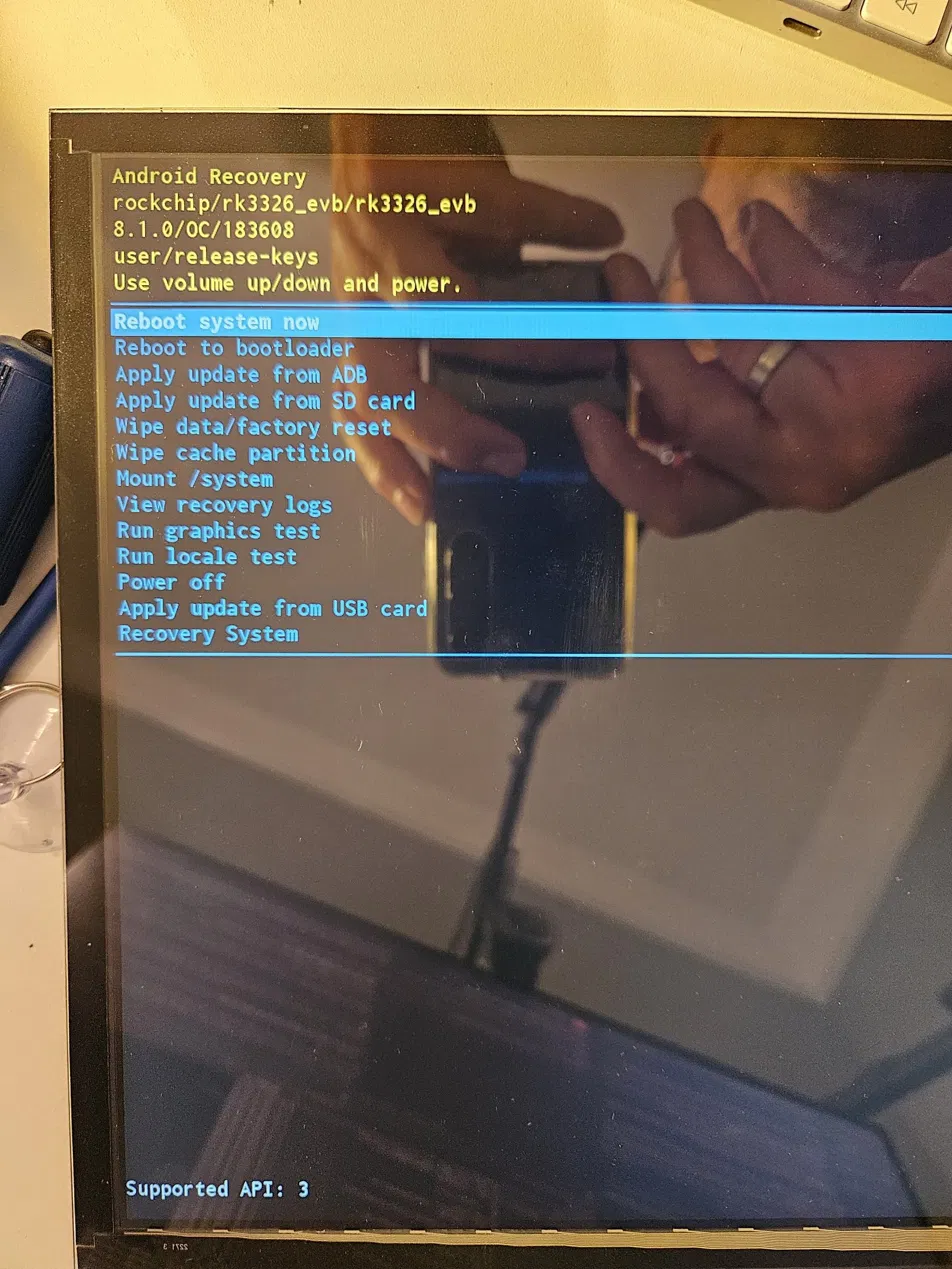
Scrolling through this menu is absolutely diabolical (connecting a USB A keyboard in the other port doesn’t help) - you short the pins on the PCB to move UP this list (starting from the bottom) and press the power button to take the action. I did this with the screen balanced precariously looking away from me, with my phone in front of it taking a selfie so I could see which option - whilst I balanced one hand on the power button and the other hand with tweezers on the PCB… I only did it twice because I couldn’t bear the pressure!
(the wrong option is potentially bricking the device).
Recovery supports “Apply update from USB card”, which just needs a correctly signed update.zip in the root of a USB stick. I built a minimal one, signed with the standard AOSP public test keys using openssl cms -sign to replicate what signapk -w does, and tried it:
E:footer is wrong
Update package verification took 0.0 s (result 1).
E:Signature verification failed
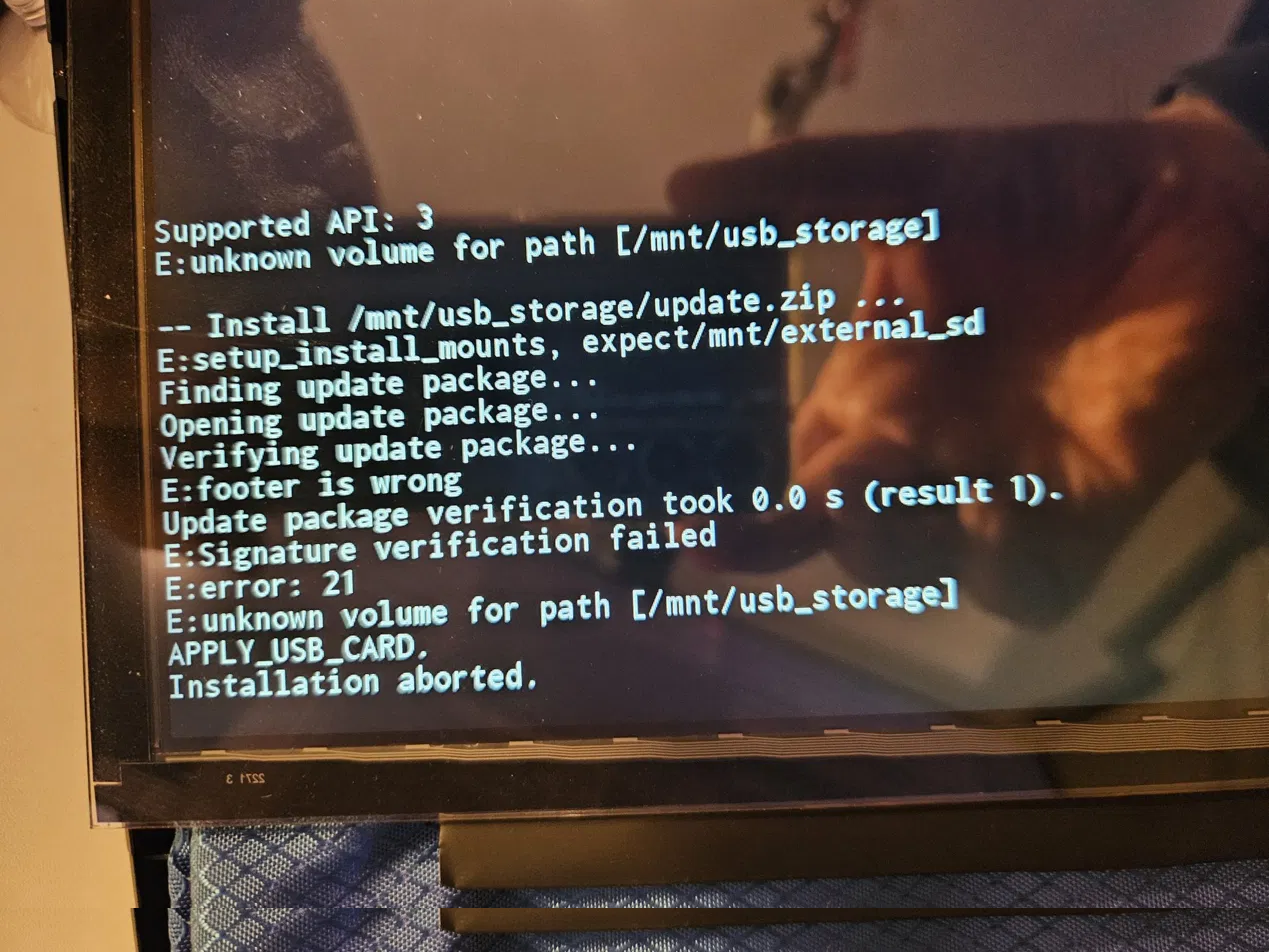
I worked through every public AOSP key (testkey, platform, shared, media), each in both SHA-1 and SHA-256 variants - eight attempts in total, all rejected. The recovery build reports as user/release-keys, meaning it only trusts the OEM’s own private signing key, which obviously isn’t public.
So Frameo have their own release keys which are private and we can’t go further.
Is the eMMC really locked?
Before going further I wanted to understand whether that 32MB wall was deliberate. I cloned Rockchip’s own vendor U-Boot source (rockchip-linux/u-boot) and went looking. Sure enough, in cmd/rockusb.c:
#define RKUSB_READ_LIMIT_ADDR  (32 * 2048)  /* 32MB */

static int rkusb_read_sector(struct ums *ums_dev,
                 ulong start, lbaint_t blkcnt, void *buf)
{
    ...
    if ((blkstart + blkcnt) > RKUSB_READ_LIMIT_ADDR) {
        memset(buf, 0xcc, blkcnt * SECTOR_SIZE);
        return blkcnt;
    }
    ...
}
So it’s real, and it’s deliberate - baked into Rockchip’s own published source, not something specific to this frame. My best theory is that it’s there to stop casual firmware dumping via the stock flashing tools (RKDevTool / rkdeveloptool), without actually restricting anything the device itself does once it’s running Android. It only affects this one USB mass-storage command path; nothing else in the OS cares about it.
Usefully, though, it’s also only one file. U-Boot ships a completely separate, generic ums (USB Mass Storage) command with no such cap, since that code isn’t Rockchip-specific.
The eMMC was never the problem - the USB protocol was
Rockchip’s BootROM falls back to booting from an SD card if the eMMC’s own boot header isn’t valid, and I could force that by zeroing one sector on the eMMC (safely, having backed it up first, and restored afterwards). That meant I could boot a custom U-Boot from an SD card instead of the frame’s own.
In fact later it turned out that this device would boot off a suitably formatted SD card even without that sector.
I built vendor U-Boot for this board (evb-rk3326_defconfig) in a small x86 Docker container so the Rockchip toolchain and prebuilt blobs would behave, and set its boot command to ums 0 mmc 0 instead of Rockchip’s own rockusb gadget.
Booting with that SD card inserted - and a USB C -> C cable to the Mac again - but without any other special boot instruction, the frame’s entire 59GB eMMC showed up on my Mac as a completely ordinary external disk:
/dev/disk5 (external, physical):
   0:  GUID_partition_scheme     *62.5 GB   disk5
   ...
  16:  ...                        59.6 GB   disk5s16
No Rockchip protocol, no cap, just dd and diskutil working on raw sectors like any other drive. Reading boot this way gave a clean ANDROID! header rather than a wall of 0xCC - full, verified, unrestricted access to everything.
(One side note on the detour this took: rebuilding U-Boot a second time from the same source, for any reason - even a totally inert change - reliably produced a binary that silently hung on boot with no USB enumeration at all, while the very first successful build kept working fine no matter how many times I reused it. I never fully root-caused it, and ended up binary-patching the one proven-good uboot.img directly - rewriting its embedded boot command string in place and recomputing its checksums - rather than trusting another rebuild.)
I’d also been eyeing up the eMMC chip itself under the board’s shield as a fallback option, in case none of this worked:
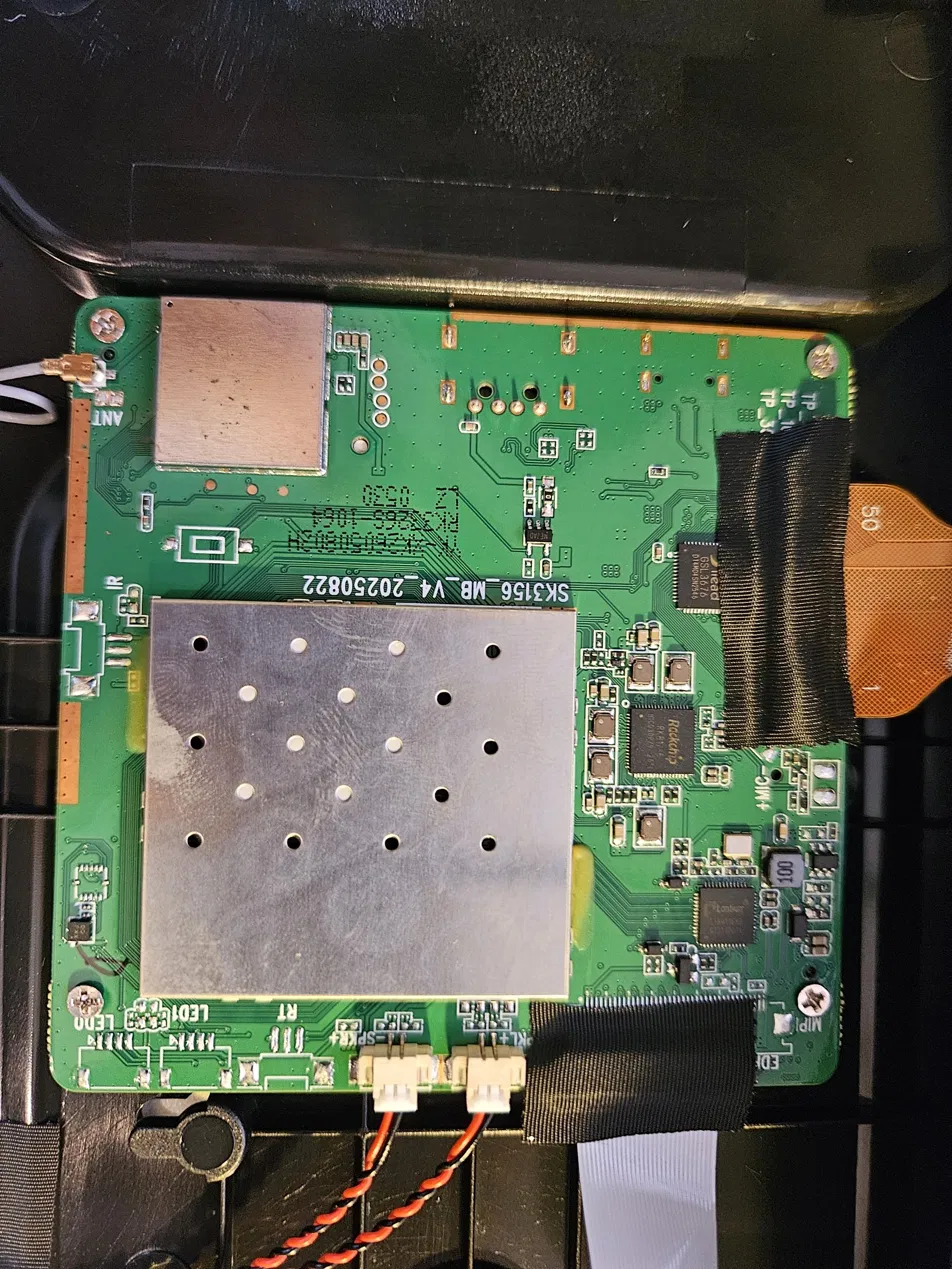
Thankfully it never came to desoldering anything.
Getting a shell
With full raw access, the rest was a fairly standard Android boot image patch. I pulled boot.img, which is a completely ordinary unsigned Android boot image (ANDROID! header, gzip+cpio ramdisk), unpacked the ramdisk, and:
- Replaced
default.prop(which was oddly a symlink to a path that doesn’t exist in the ramdisk) with a real file settingro.secure=0andro.adb.secure=0 - Appended an
on bootblock toinit.rcforcingadbdto listen on TCP port 5555 regardless of any stored settings
I patched the ramdisk surgically rather than fully unpacking and repacking it with cpio, since doing that as a non-root user on macOS silently loses the original file ownership metadata baked into the archive. Easier to just find-and-replace the two entries I cared about directly inside the compressed cpio stream and recompute the Android boot image’s CRC/SHA256 header fields, leaving everything else byte-identical.
That got adb connect talking to the frame over the network, but every connection came back unauthorized - the usual one-time “allow this computer” prompt, except there was nowhere to tap it, because Frameo’s kiosk-mode launcher was eating the dialog before it could ever show on screen.
The fix was to skip the dialog entirely: I wrote my Mac’s adb public key directly into /data/misc/adb/adb_keys on the live userdata partition, using debugfs from the SD-boot raw-disk session, which is exactly where a real “always allow” tap would have written it. After that, adb connect just worked, permanently, with no further prompts.
Fully Kiosk, and the free alternative to a proper launcher swap
From there it was mostly normal Android work:
adb install FullyKioskBrowser.apk
adb shell pm disable-user --user 0 net.frameo.frame
I bought the Fully Kiosk PLUS license (£9) so I could use it properly and use the extra features so that it starts on boot etc.
Power-cycle the frame now, with no cables, no SD card, nothing - and it boots straight past a flash of the old Frameo splash screen and into a live, full-screen Home Assistant dashboard.
What a relief!